Introducing ZestNexus MCP
Your AI workspace.
Now with ZestNexus.
Connect your AI assistant to the people, projects, and operations you already manage in ZestNexus.
Your AI assistant
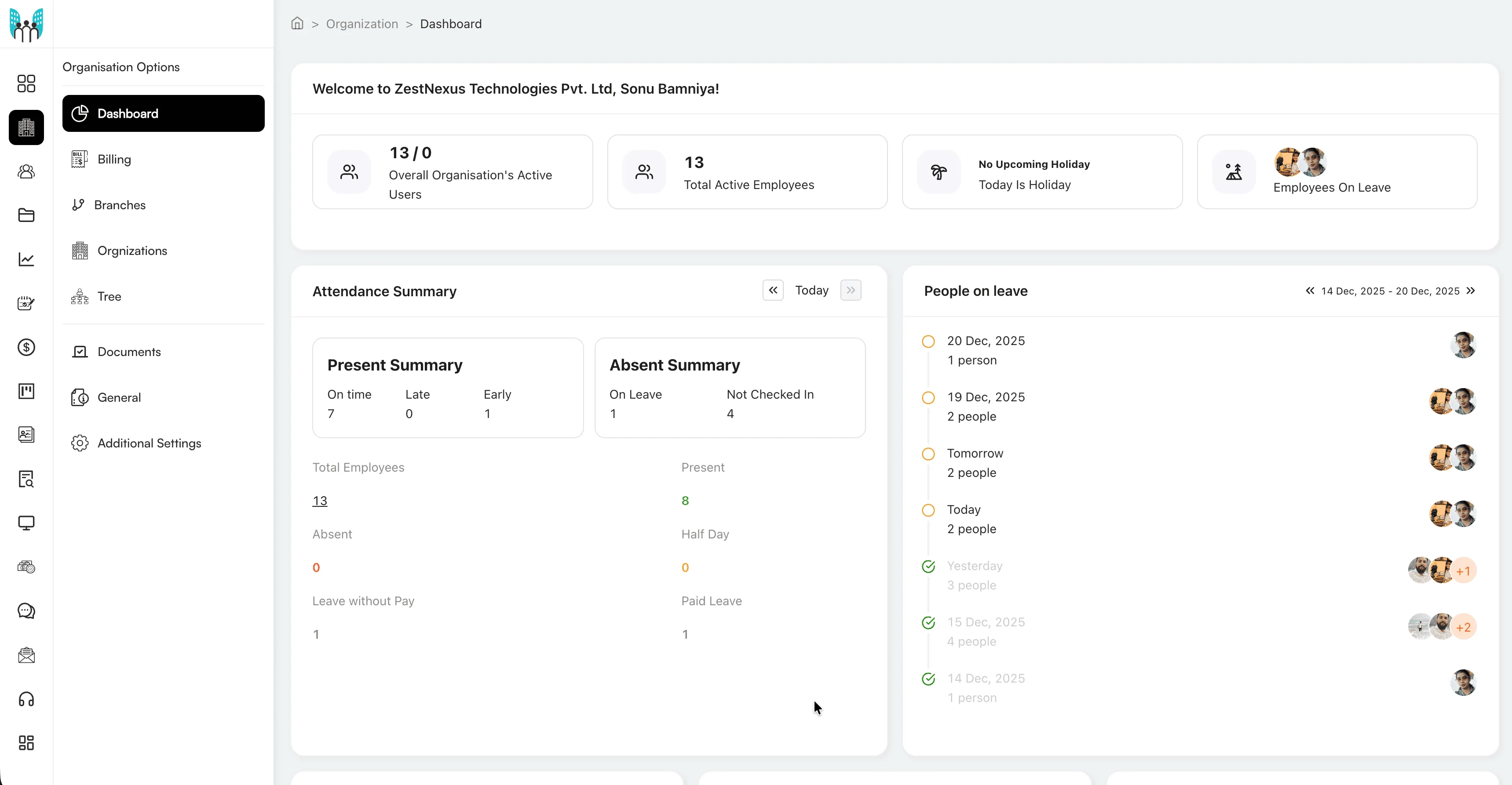
Less copying between tools.
More working with the source.
An AI assistant can help you reason through a problem. But without a connection to your business tools, you still have to export a report, paste in context, and repeat it when something changes.
MCP gives your assistant a direct way to work with ZestNexus. Ask a question, retrieve the relevant information, and continue the conversation with your workspace as context.
This is not another place to maintain your data. The capabilities you use in the app portal are available through MCP, from HR and finance to hiring, projects, and CRM.
Connect deliberately. OAuth lets you authorize the connection without sharing your password in a chat. Use an organization-approved AI client and review the permissions it requests.
A different starting point for everyday work.
Start with a question in your AI tool. Bring in ZestNexus context when you need it. Here are a few ways to put that connection to work.
Start with the question, not the report.
Find employee information, review attendance, and prepare for people decisions without assembling exports first.
- Employee records
- Attendance
- Leave
A prompt to try
Summarize this week's attendance exceptions and pending leave requests for my team. Group them by employee and highlight what needs my attention.
Ask a follow-up about an exception, narrow the date range, or turn the summary into a checklist for your team.
These are example prompts, not generated results. What your assistant can access or change depends on your ZestNexus account access, the connection you authorize, and your AI client.
Connection guide
One URL. Your ZestNexus sign-in.
You need a ZestNexus account and an AI client that supports remote MCP servers with OAuth. Connection settings vary by client.
- Step 1
Add a remote MCP connection
Open your AI application's connector, integration, or MCP settings. Choose the option to add a custom remote server.
- Step 2
Enter the ZestNexus server URL
Paste the URL shown here into the server URL field. If asked for an authentication method, choose OAuth.
- Step 3
Sign in and review access
Follow the ZestNexus OAuth sign-in flow. Review the requested permissions and authorize the connection only if you trust the client.
- Step 4
Start with a read-only question
Ask for a small summary or a record you know you can access. Review the tools your client discovers before requesting changes.
- Server URL
https://api.zestnexus.com/mcp
- Authentication
- OAuth
- Server type
- Remote MCP
This is a server address, not a sign-in page. Add it inside your AI client rather than opening it in a browser.
Get connection helpBefore you connect.
The protocol, the permissions, and where your data goes.
What is MCP, in plain language?
Model Context Protocol is a standard that lets AI applications connect to external tools and data. ZestNexus provides the MCP server; your AI application is the client. Once connected and authorized, the client can discover tools and use them to work with your ZestNexus workspace.
Which AI applications can I connect?
Use a client that supports remote MCP servers and OAuth authorization. Check your client's documentation for custom connector availability, plan requirements, and administrator restrictions. MCP support alone does not guarantee support for a remote OAuth connection.
Is this different from the ZestNexus chat bot?
Yes. MCP lets you bring ZestNexus capabilities into an external AI application you choose. It is a connection standard, not a separate chat bot or a replacement for the ZestNexus portal.
Can my assistant make changes, or only read data?
The integration supports both read and write capabilities. The capabilities available through the app portal are also accessible through MCP, subject to your account access and authorization. Review the tool, target records, and proposed changes before allowing an action. Confirmation behavior depends on your AI client.
Do I need to share my password with the AI tool?
No. The connection uses OAuth: sign in through the ZestNexus authorization flow instead of pasting a password or token into a conversation. Review the permissions requested before approving the connection.
What should I know about sensitive employee data?
Data returned by a tool becomes available to the AI application you connect. Use a client approved by your organization and review its data retention and model-training policies. Only request the employee, payroll, or candidate information needed for the task.